Cloud Account
Onboarding your Cloud Accounts
To configure your own account, you can grant us a security role through different mechanisms to provision infrastructure on your behalf. If you wish to host on our account, you can skip this step.
Here is how it looks like:
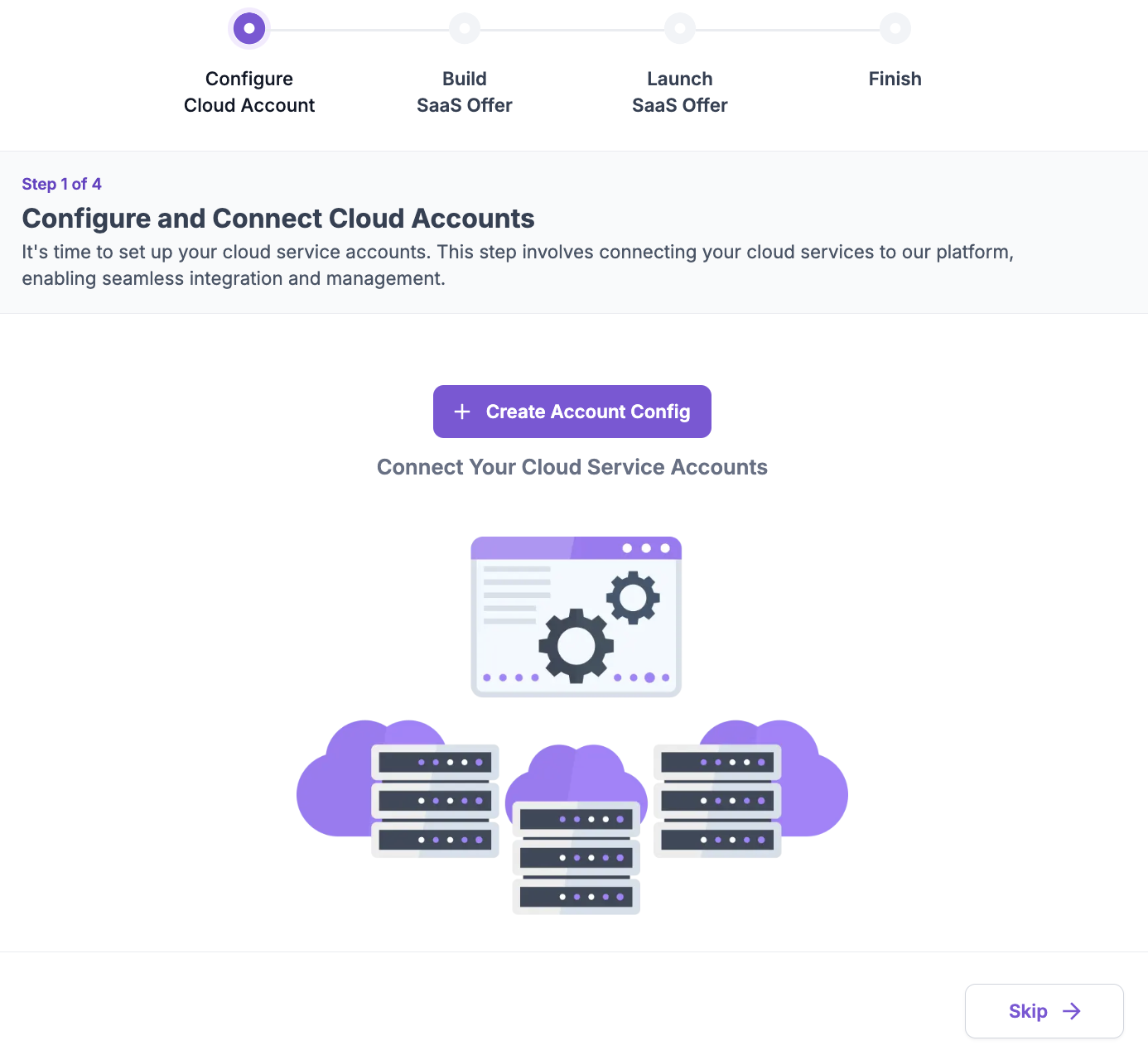
- For AWS, we have a 1-click integration to create your Cloudformation stack. For step-by-step instructions, here is a link to the video
- For GCP, we have a 1-click integration using Cloud Shell to create the security role. For step-by-step instructions, here is a link to the video
- For Azure, we have a 1-click integration using Azure Cloud Shell to create the security role. For step-by-step instructions, here is a link to the video
Note
If you encounter any error due to the already created AWSLoadBalancerControllerIAMPolicy policy in AWS, please select the option to onboard your AWS account without creating that policy
Required permissions for onboarding
Permissions required to execute account onboarding vary depending on the cloud provider.
AWS
User executing the CloudFormation stack needs to have AdministratorAccess on the AWS account.
GCP
User executing the Cloud Shell script needs to have roles/owner on the GCP project.
Azure
User executing the Cloud Shell script needs to either be an Owner on the Azure subscription, or have the following roles: - User Access Administrator - Application Administrator
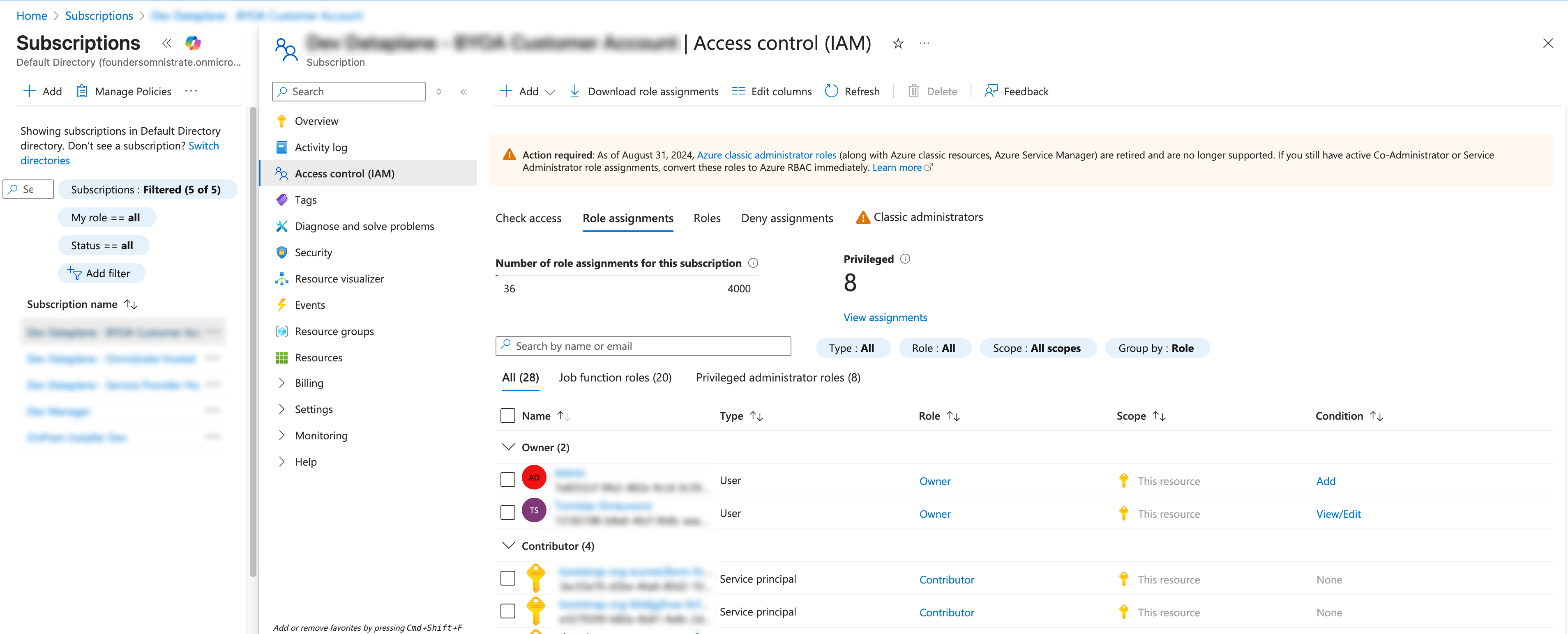
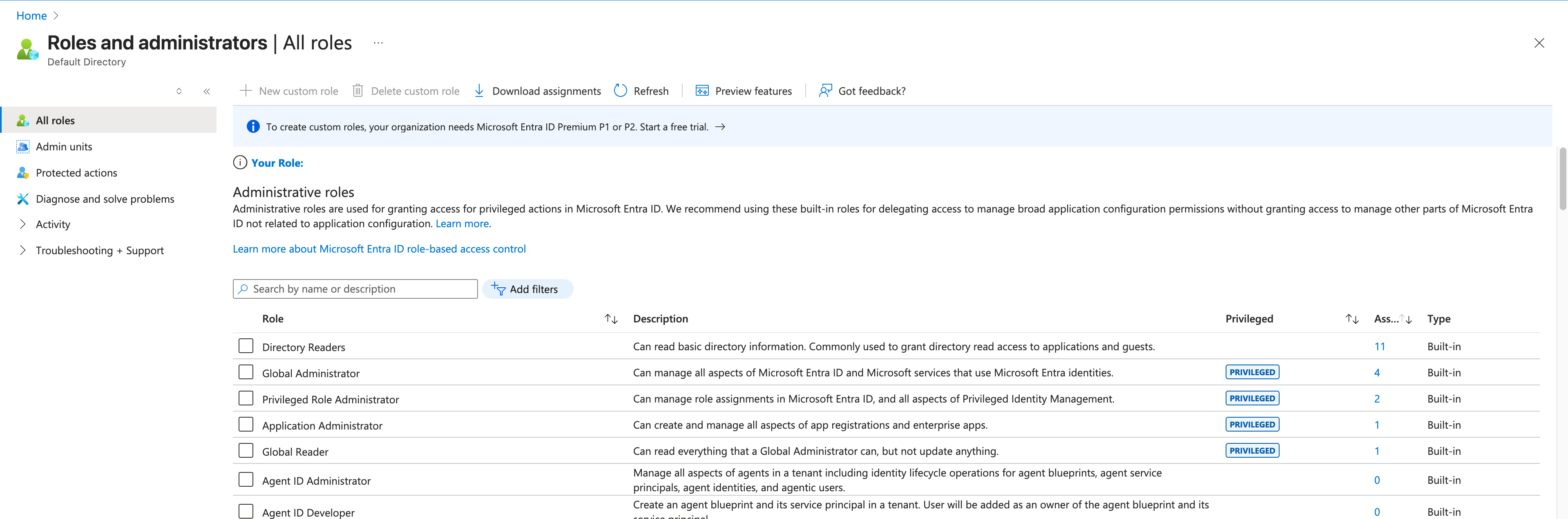
In addition, there are permissions required on the Azure AD level: - Privileged Role Administrator
Common Issues During Account Onboarding
AWS Load Balancer Controller Policy Already Exists
Problem: AWS accounts sometimes have the AWS Load Balancer Controller Policy already installed, which can result in CloudFormation stack errors due to duplicate policy creation attempts.
Solution: When onboarding your AWS account, if you encounter errors related to the AWS Load Balancer Controller Policy already existing, you need to configure the CloudFormation parameter to skip the policy installation.
During the AWS account onboarding process:
- Set the CloudFormation parameter for AWS Load Balancer Controller Policy creation to
false - This will skip the installation of the policy and avoid the duplicate resource error
- The existing policy in your account will be used instead
Cloud Account already used in different Environment
Problem: You used a cloud account to one Omnistrate Organization and later attempted to add it to a different Omnistrate Organization, which resulted an error message.
Solution: This is expected behavior. The same cloud account can be used across different environments (dev, staging, prod) within the same organization, but cannot be used across different organizations. This is a security feature to prevent account conflicts and ensure proper isolation between organizations.
If you need to use the same cloud account across different organizations, you'll need to:
- Remove the account from the first organization
- Wait for the removal to complete
- Add it to the second organization
Offboarding
When you no longer need a cloud account connected to Omnistrate, you can offboard it to remove all Omnistrate-managed resources and revoke access. The offboarding process is automated and handles cleanup of infrastructure artifacts that were created during onboarding.
Before you offboard
Before initiating the offboarding process:
- Delete all deployment instances running in the cloud account. Active instances must be removed before offboarding can proceed.
Warning
Offboarding a cloud account is a destructive operation. Ensure all data has been backed up and all deployment instances have been properly decommissioned before proceeding.
Offboarding steps
Follow these steps to offboard a cloud account:
- Navigate to System Settings > Cloud Accounts in the Omnistrate Console.
- Locate the cloud account you want to offboard.
- Click Delete on the account configuration.
- Wait for the account configuration deletion to complete. Omnistrate automatically cleans up all platform-managed artifacts (deployment cells, control plane components, and networking resources) in the account.
- After the account configuration is deleted, remove the onboarding artifacts from your cloud provider:
AWS
Delete the CloudFormation stack that was created during onboarding:
- Open the AWS CloudFormation Console.
- Locate the Omnistrate onboarding stack.
- Select the stack and choose Delete.
- Wait for the stack deletion to complete.
GCP
Run the offboarding script using Cloud Shell:
- Open Google Cloud Shell.
- Run the offboarding script provided during the onboarding process to remove the service account and IAM bindings.
Azure
Run the offboarding script using Azure Cloud Shell:
- Open Azure Cloud Shell.
- Run the offboarding script provided during the onboarding process to remove the service principal, role assignments, and related resources.
What offboarding cleans up
When you delete the account configuration, Omnistrate automatically removes all deployment cells and their underlying infrastructure (control plane, networking, and system components).
Note
The cloud-provider-specific onboarding artifacts (CloudFormation stacks, GCP service accounts, Azure service principals) are not automatically deleted. You must remove these manually as described in the steps above.
For any questions about the offboarding process, reach out to support@omnistrate.com.