Workflows
What is a Workflow?
A workflow in Omnistrate represents an automated sequence of operations that manage the lifecycle of your SaaS infrastructure and services. Workflows orchestrate complex tasks such as provisioning, scaling, updating, and deprovisioning resources across your deployment infrastructure.
Workflows provide visibility into the execution of these operations, allowing you to monitor progress, troubleshoot issues, and ensure reliable service delivery to your customers.
Workflow Operations
Workflows can perform various types of operations:
Workflow Type
- PROVISIONING: Creates new instances and sets up required infrastructure
- DELETING: Removes instances and cleans up associated resources
- SCALING: Adjusts resource capacity up or down
- UPDATING: Applies configuration changes or software updates
- START: Initiates a stopped instance or service, making it active and available
- STOP: Gracefully shuts down an instance or service, preserving state for later restart
- BACKUP: Performs data backup operations to safeguard your information and enable point-in-time recovery
- RESTORE: Recovers data from backups to restore a deployment to a previous state
Workflow stages
Each workflow consists of multiple stages, such as bootstrap, storage, network, compute, deployment, and monitoring. These stages are designed to run in parallel, allowing different parts of the workflow to execute simultaneously. This parallel execution improves efficiency and reduces the overall time required to complete the workflow, as independent tasks do not have to wait for each other to finish before starting.
- Bootstrap: Initializes the foundational components of your service
- Storage: Sets up persistent storage resources
- Network: Configures networking components and connectivity
- Compute: Provisions compute resources and containers
- Deployment: Deploys your application components
- Monitoring: Sets up observability and monitoring systems
Control Operations
Workflows support several control operations that can be performed through the Action dropdown:
- Pause: Temporarily halt workflow execution
- Resume: Continue a paused workflow
- Restart: Re-execute a failed or terminated workflow from the beginning. This is useful when a transient issue caused the workflow to fail and you want to retry the entire operation.
- Terminate: Stop and cancel a running workflow
Workflow Visualization
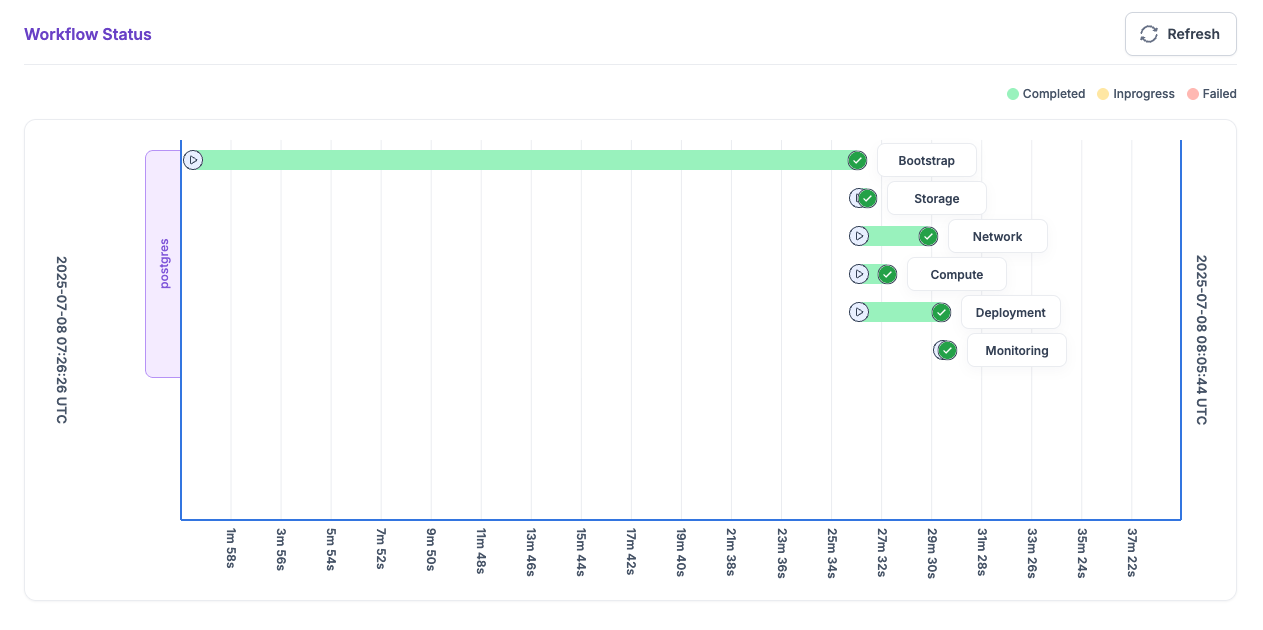
The workflow visualization provides a comprehensive view of each workflow activities with the following key sections:
Status Overview
The top section displays workflow status counters:
- In Progress: Number of currently running workflows (shown with a gear icon)
- Succeeded: Number of successfully completed workflows (shown with a checkmark icon)
- Failed: Number of workflows that encountered errors (shown with a warning triangle icon)
You can expand each step in the workflow visualization to view detailed information about its execution. This includes the current status, timestamps, and any error messages encountered during the operation. Expanding a step helps you diagnose issues quickly and understand the progress or failure points within the workflow.
Troubleshooting Failed Workflows
If a workflow fails, start with Debug Events to identify the failed stage. Then use Instance Debug for resource-level logs, rendered artifacts, parameters, outputs, and operation history.
Restarting a workflow vs publishing a new Plan version
When a workflow starts, Omnistrate renders and captures the Plan, Terraform, or Helm inputs and other artifacts used by that operation. Restarting a failed workflow retries those captured artifacts; it does not normally re-read edits made afterward to the Plan specification, Terraform source, Helm inputs, or a pinned Git reference.
Publish a new Plan version and trigger a fresh create, modify, or upgrade workflow if you changed any of the following:
- The Plan specification
- A
parameterDependencyMap - The referenced Git branch, tag, or commit
- Terraform or Helm artifacts that must be re-rendered
If the referenced Git input is the moving head of a branch rather than a pinned commit or tag, a restart resolves the branch head again at restart time. For deterministic behavior, pin Git sources to a tag or commit SHA. When you need changed inputs to be rendered, publish a new Plan version and trigger a fresh create, modify, or upgrade workflow.